Everything in one place
Edit, organise and share your songs — no more juggling apps.
Set every song for each student, keep it in their folder and share it in one click. All online, nothing to install.
Edit, organise and share your songs — no more juggling apps.
One folder per student, each song with its own settings.
The controls you really use in lessons, clear and quick.
Nothing to download or install: open your browser and you're ready.
An audio or a video file: the song you're working on with your student.
Transpose, pitch, speed, equalizer, reverb — and an A/B loop to work on one precise passage with your student.
Get the final track and use it offline.
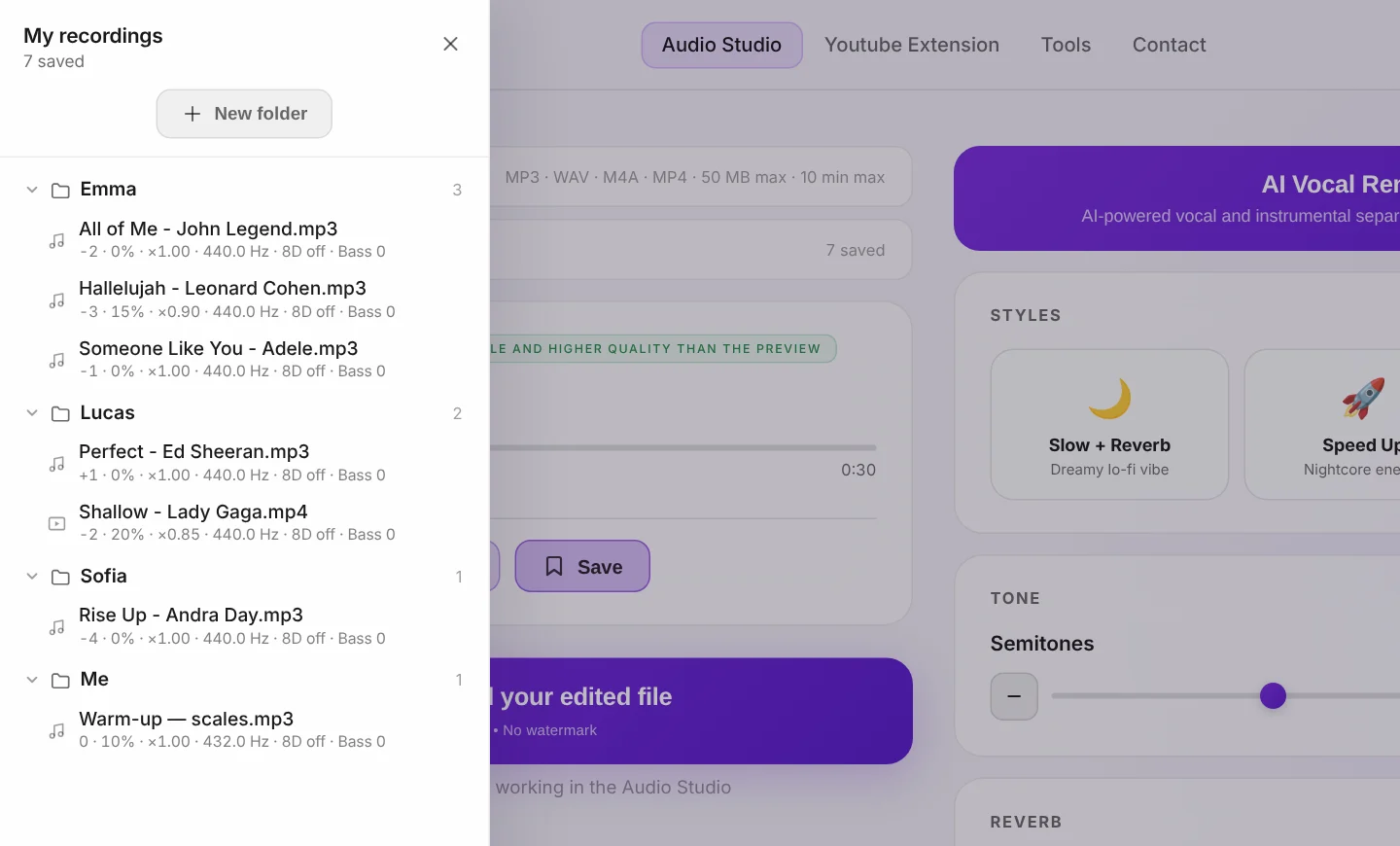
Save each song with its settings in your student's folder. One click and you're back on the song they're working on, set just right.
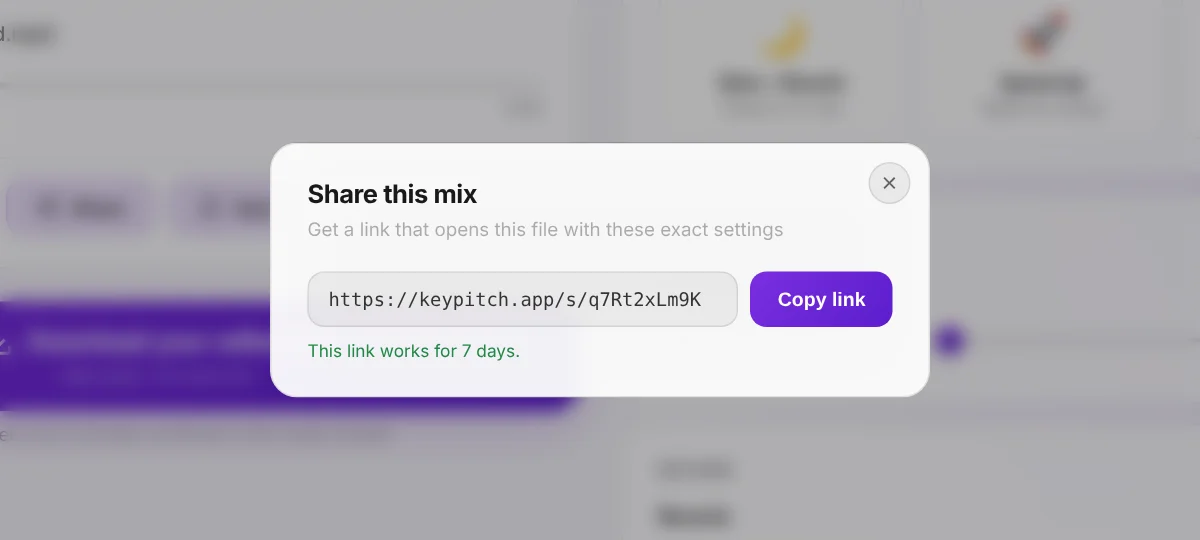
Send the link to your student: they open the file you worked on in class, with exactly the same settings.
Practice mode gives the video most of the screen and keeps every control within reach on the side.
Upload your first song and try it for free, right in your browser.
KeyPitch is made for singing teachers, vocal coaches and instrument teachers — guitar, piano and more — who prepare songs for their students. Its online Audio Studio brings together what a lesson needs: changing the key, pitch and speed of a song, an equalizer, reverb, an A/B loop, a library with one folder per student, one-click sharing and Practice mode. Singing students, singers and musicians who practise on their own use it too.
Create one folder per student in My recordings, named after the student. Save each song you prepare for them, then drag and drop it into their folder. Every recording keeps its settings — key, pitch, speed, reverb and equalizer — and can keep an A/B loop on a passage: one click brings back the song the student is working on, exactly as it was in the last lesson. A free account keeps 3 recordings; with KeyPitch Pro, recordings and folders are unlimited.
Mainly five. The key, moved 1 to 3 semitones down or up, to fit a song to the student's vocal range without changing its tempo. The speed, slowed to around ×0.80 to learn a hard passage, then brought back to ×1.00 — without touching the key. The A/B loop, to repeat a single phrase. The equalizer's Vocals preset, to bring the melody forward. And the pitch in hertz, to match a piano or a band tuned to 432, 440 or 442 Hz. Instrument teachers use the same controls to slow down a solo or move a recording into the key of their arrangement.
A downloaded file plays without an internet connection and without a browser tab: it is the safe choice on stage or at a concert, at a rehearsal with patchy Wi-Fi, in the car or on a student's phone. The exported file is also more stable and of higher quality than the live preview. Export it as MP3, WAV or MP4. Downloading is the paid part of KeyPitch: one file at a time, a pack, or unlimited with a subscription.
At the end of the lesson, click Share on the file you worked on together and send the link by email, WhatsApp or any messaging app. At home, the student opens it on their own computer, tablet or phone, and the file plays with exactly the same settings: key, pitch, speed, reverb, equalizer and A/B loop. One click for the teacher, one click for the student — and they practise the exact version from the lesson, with nothing to install. Links are free to create and to open, and stay valid for 7 days. It works the other way too: a student can send the passage they are struggling with, to work on it in the next lesson.
No. The KeyPitch Audio Studio runs online, in the browser, on a computer, tablet or phone: nothing to download, nothing to install, no updates to run. Practice mode, which shows the video large with every control on the right, needs a computer with a screen at least 1024 pixels wide. For YouTube videos, a free Chrome extension also changes the key, pitch and speed in real time.
Audio and video files in MP3, WAV, M4A and MP4, up to 50 MB and 10 minutes per file. KeyPitch also reads the key and tempo of every file you load, for free.
You can start for free, with no credit card: upload files, use every setting, listen to the result as long as you like, create and open share links, and keep 3 recordings with a free account. Practice mode is free for 5 minutes a day. You only pay to download edited files — one at a time or with a pack — or with a KeyPitch Pro subscription, which makes downloads, AI vocal removal, Practice mode and the library unlimited. Licences for a whole teaching studio or class are available at a reduced price per seat.
Yes. The AI Vocal Remover in the Audio Studio splits a song into the isolated vocal and the instrumental, from an MP3, WAV, M4A or MP4 file. The student can sing over the instrumental, or study the vocal line on its own.
Yes, in Practice mode on a computer: with an audio file, a dedicated space next to the controls holds the lyrics or your lesson notes, and − and + make the text bigger or smaller. The text is kept in this browser, for each song.