Como os coaches vocais criam as suas faixas de prática
Você conhece o momento. Um aluno chega com uma música que anda a ouvir em repeat, você carrega no play e oito compassos depois já se ouve o problema: o refrão está três semitons acima do que ele consegue cantar sem forçar, e a única versão que existe online é a gravação original na tonalidade original. A aula passa a ser uma escolha entre deixá-lo forçar ou transpor ao piano e torcer para que ele aguente sozinho em casa.
Todo coach vocal, professor de canto e professor de técnica vocal acaba a resolver isto da mesma forma: com uma faixa de prática — aquela música, na tonalidade daquele aluno, num ficheiro que ele possa guardar. A verdadeira pergunta não é se precisa de faixas de prática. É quantas horas por semana elas lhe custam e quantas ferramentas tem de manobrar para fazer uma. Abaixo está o método dos coaches quando toda a cadeia vive no mesmo sítio.
A versão curta: receba a música antes da aula — um ficheiro ou um link de partilha —, separe a voz do instrumental com o AI Vocal Remover se não existir versão karaoke, ajuste a tonalidade à tessitura do aluno com o cursor de semitons enquanto ele canta, abrande as passagens difíceis, e depois guarde a faixa na pasta do aluno e envie-a como link de partilha ou como ficheiro. Um só estúdio, cinco minutos por aluno.
O que uma faixa de prática tem mesmo de fazer
Antes das ferramentas, o caderno de encargos. Uma faixa que ajuda realmente um aluno a progredir entre aulas tem de cumprir quatro requisitos — e uma faixa que só cumpre três é a razão pela qual tantos alunos deixam de usar o ficheiro que você enviou:
- Está na tessitura dele, não na do artista. A tonalidade original foi escolhida para outra voz. A que tem de ser servida é a do seu aluno.
- Tem a textura certa. Às vezes o aluno precisa só do instrumental. Às vezes precisa da voz original como modelo. Muitas vezes precisa das duas, em fases diferentes da aprendizagem da mesma música.
- Pode ser abrandada sem descer de altura. Um melisma a 80 % é uma ferramenta pedagógica. Um melisma a 80 % que também desce de altura não serve para nada.
- Chega-lhe intacta. O aluno tem de ficar com exatamente a versão que construiu — um ficheiro que toca offline no telemóvel, sem anúncios, ou um link que abre a mesma faixa com as mesmas definições, sem instalar nada.
Porque é que o método habitual lhe come a semana
A maioria dos coaches monta essa faixa com quatro serviços sem relação entre si, e cada um perde tempo pelo caminho:
- Procurar uma versão karaoke no YouTube que acaba por soar a MIDI, estar mal misturada ou simplesmente não estar na tonalidade certa — e que muitas vezes nem sequer existe para nada fora do top 40.
- Abrir um DAW só para transpor. Um editor de áudio completo é uma resposta pesadíssima para uma pergunta de um só cursor, e não é algo que consiga operar com um aluno de pé à sua frente.
- Um separador de faixas à parte com a sua própria conta, o seu próprio upload e a sua própria exportação — para o único caso em que precisa do instrumental sozinho.
- Nada que possa realmente entregar. As extensões de navegador transpõem o YouTube muito bem durante a aula, mas não conseguem descarregar o resultado, por isso o aluno sai de mãos vazias.
- Um caderno de transposições. «Sara −2, Marcos +1» — e cada cursor reajustado à mão na aula seguinte, enquanto o aluno espera.
Quatro separadores, quatro logins, e a faixa continua por fazer. A alternativa é correr toda a cadeia — separação da voz, mudança de tonalidade, tempo, exportação — no mesmo ficheiro, na mesma janela. É o método abaixo.
O método do coach, passo a passo
Estes cinco passos encaixam numa aula normal em vez de se somarem a ela. Quase tudo acontece com o aluno na sala, e é também isso que torna o resultado melhor: ele ouve cada decisão a ser tomada.
Passo 1 — Receba a música antes da aula
Faça disto uma regra com os seus alunos: a música chega antes da aula. Um ficheiro de áudio ou um vídeo — MP3, WAV, M4A ou MP4 funcionam todos — enviado por e-mail ou mensagem, ou melhor ainda um link de partilha KeyPitch, que abre a música dele no Studio com 1 clique. Custa um minuto ao aluno e poupa-lhe os dez minutos que passaria no início da aula à procura de uma versão utilizável. Também lhe diz o que ele quer realmente cantar, o que convém saber antes de ele entrar na sala.
Passo 2 — Sem instrumental? Separe a música com o Vocal Remover com IA
Este é o passo que bloqueava completamente os coaches. O seu aluno quer cantar uma música da qual não existe versão instrumental em lado nenhum: uma faixa de álbum, uma balada noutra língua, um número de musical, um artista pequeno de mais para ter karaokes online. Antes, isso significava cantar por cima da voz original ou desistir da música.
Agora carrega a gravação original no Vocal Remover com IA da KeyPitch e ele devolve dois ficheiros separados: a voz isolada e o instrumental. O instrumental passa a ser a sua faixa de acompanhamento — para qualquer música, tenha ou não saído alguma vez em versão karaoke. E a voz isolada também não é desperdício: é o modelo mais limpo que um aluno alguma vez terá para o fraseado, a dicção e o sítio das respirações.
Como os coaches usam as duas faixas: envie a voz isolada enquanto o aluno ainda está a aprender a melodia e depois o instrumental sozinho quando já a consegue sustentar. Uma única separação, duas fases da mesma música — e o instrumental transpõe-se para a tonalidade dele como qualquer outro ficheiro.
Passo 3 — Ajuste a tonalidade à tessitura dele, ao vivo na aula
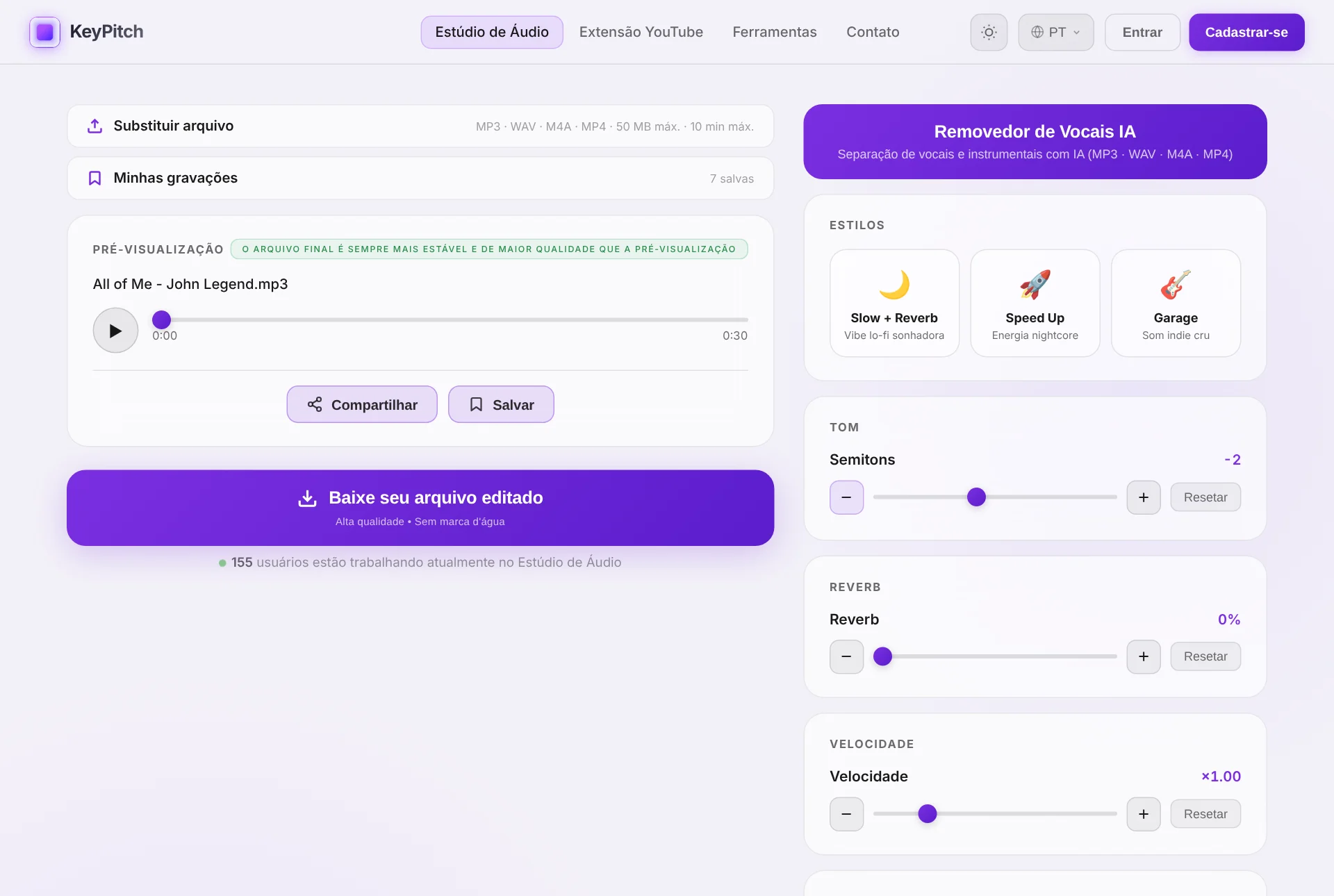
Carregue a faixa no Estúdio de Áudio da KeyPitch, carregue no play e mova o cursor de semitons enquanto o aluno canta a frase mais aguda da música. O pitch muda em tempo real — sem espera de processamento — por isso ouve o efeito de cada semitom no momento em que ele o canta. Pare quando a nota aguda estiver confortável e a parte grave continuar apoiada. Isso acontece normalmente a 1 a 3 semitons do original. Experimente o cursor aqui:
Passo 4 — Abrande as passagens que precisam
A tonalidade e o tempo movem-se de forma independente, por isso, depois de fixada a tonalidade, pode baixar a velocidade para trabalhar um melisma, uma linha de dicção rápida ou uma ponte ingrata — sem que a faixa desça de altura. Ponha a 80 %, trabalhe a passagem e volte ao tempo real na mesma aula. Alguns coaches exportam a faixa duas vezes, uma lenta e outra a tempo, e enviam os dois ficheiros para o aluno ensaiar da mesma forma em casa.
No computador, o Modo prática faz o resto: coloque um loop A/B em volta do melisma ou da ponte e deixe repetir a 80% — ou passe para Uma vez, que toca o trecho uma vez e espera no A enquanto o aluno responde. O loop fica no mesmo arquivo que a tonalidade e o tempo: nada precisa ser preparado duas vezes. Salve-o em Minhas gravações e o mesmo loop volta na semana seguinte, com a tonalidade e o tempo.
Passo 5 — Guarde-a na pasta do aluno e envie-a para casa
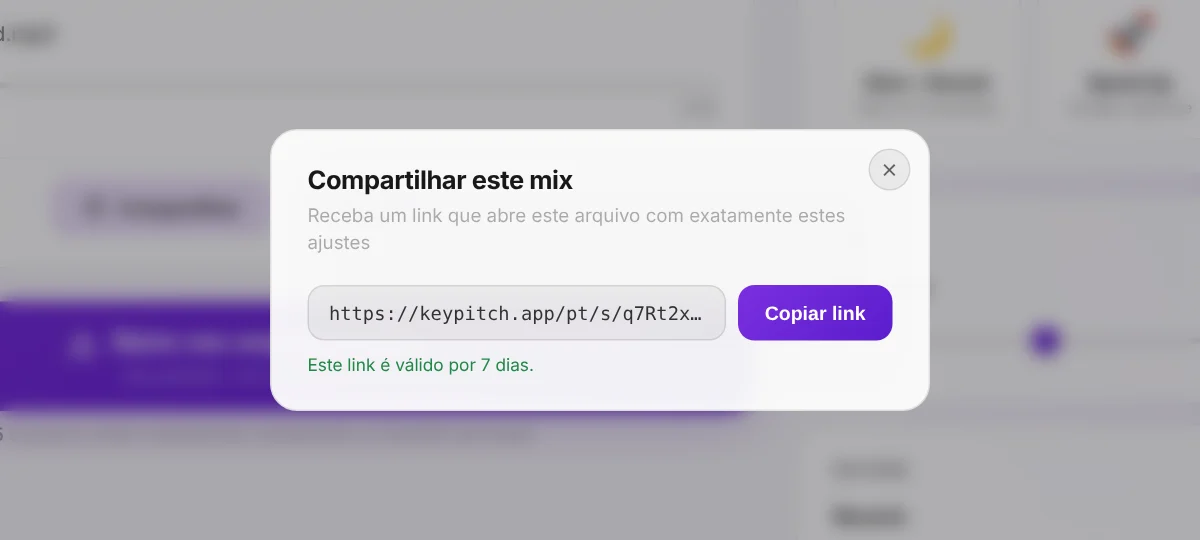
No fim da aula, guarde a faixa na pasta do aluno — tonalidade, tempo e efeitos incluídos — para ficar pronta na semana seguinte. Depois envie-a para casa: um link de partilha que abre exatamente a faixa no Studio (gratuito, válido durante 7 dias), ou o ficheiro final, que toca em qualquer telemóvel ou portátil offline, sem anúncios e sem nada para instalar. Cada ensaio que ele fizer nessa semana reforça agora a versão que construíram juntos, em vez da gravação original que nunca serviu à sua voz.
Partilhar e arquivar: as duas coisas que faltavam aos coaches
Preparar a faixa era só metade do trabalho. A outra metade era fazê-la chegar intacta ao aluno — e voltar a encontrá-la na semana seguinte. O Audio Studio trata agora das duas.
Links de partilha: a faixa e as suas definições, nos dois sentidos
Clique em Compartilhar e envie o link por e-mail ou WhatsApp. O aluno abre exatamente o seu ficheiro com exatamente as suas definições — tonalidade, tempo, efeitos — sem conta e sem instalar nada. Os links são gratuitos de criar e de abrir, e continuam válidos durante 7 dias. No sentido inverso, um aluno envia-lhe a música que quer trabalhar, ou a versão em que está encalhado, e o professor abre-a com 1 clique antes da aula.
Uma biblioteca com uma pasta por aluno
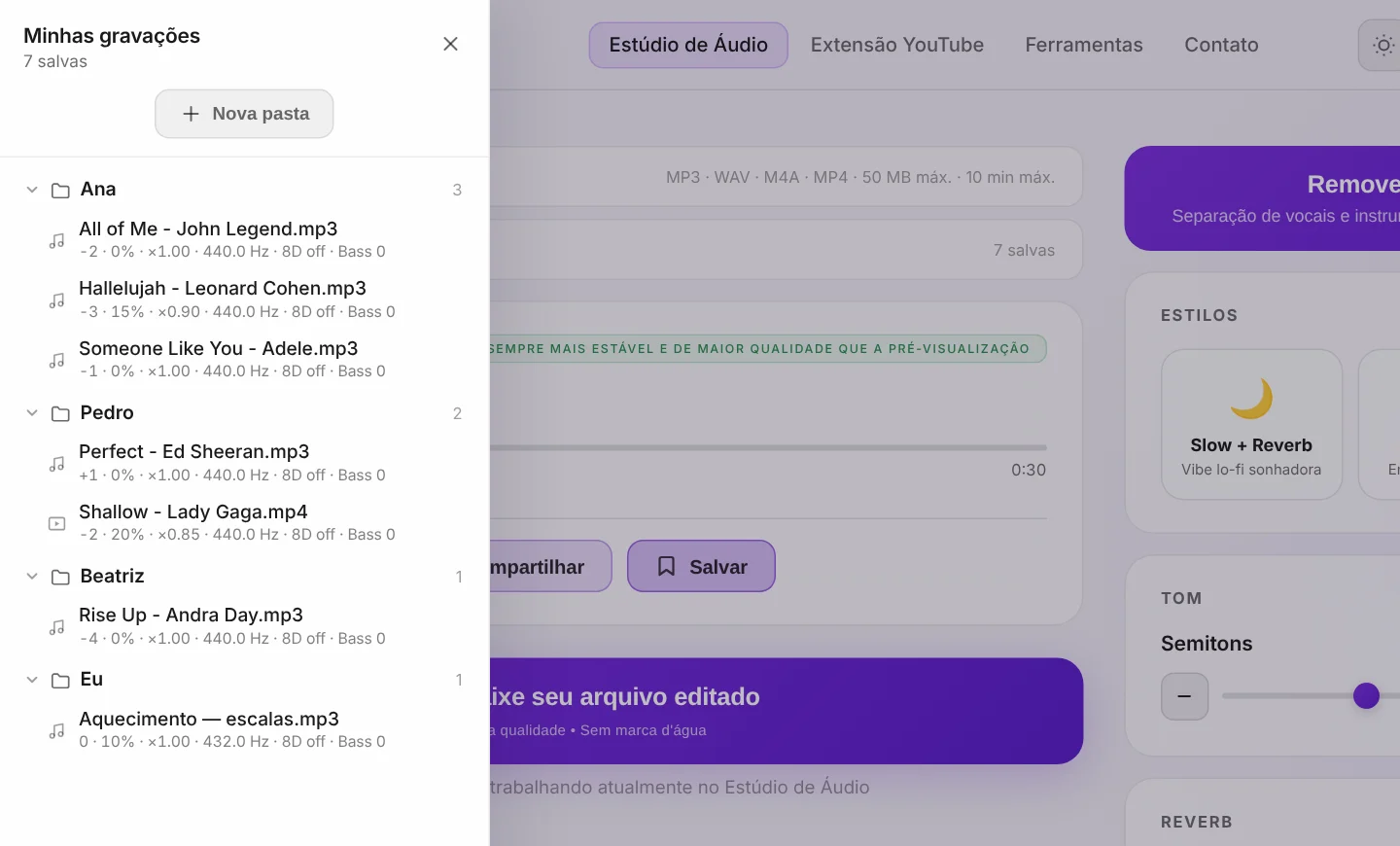
Cada faixa pode ser guardada em Minhas gravações com as suas definições. Uma pasta por aluno, com o nome dele, as músicas arrumadas arrastando e largando: na aula seguinte, todo o repertório dele está lá, cada música na sua tonalidade, a 1 clique. É o registo de transposições, feito das próprias faixas. Três gravações são gratuitas; a subscrição torna a biblioteca ilimitada. Agora você também pode salvar um loop A/B: só o trecho que um aluno está trabalhando, que reabre no Modo prática com os ajustes.
O Modo prática: o vídeo ou a letra, todos os ajustes e um loop A/B
Ative pelo player e o estúdio cabe numa só tela: o vídeo, grande o bastante para ler a letra de um karaokê do outro lado da sala — ou, com um arquivo de áudio, um painel de Letra onde você cola o texto e ajusta o tamanho com − e +. Todos os ajustes ficam, mais compactos, à direita, abaixo do loop A/B. Os atalhos de teclado deixam suas mãos livres: Espaço para tocar, A e B para marcar os pontos, L para ligar ou desligar o loop. A barra de navegação some para uma tela mais limpa. O Modo prática é grátis durante 5 minutos por dia, ilimitado com uma assinatura.
A análise da faixa: a tonalidade, o código Camelot e o tempo com um clique
O botão ⓘ abaixo do player abre a análise do arquivo: tonalidade, tonalidade relativa, código Camelot, segunda hipótese, tempo, tempo exato e leituras de metade / dobro do tempo. Ela acompanha os controles — mexa nos semitons e ela mostra a tonalidade em que o aluno está cantando agora. Com voltar ao início e ±5 segundos no player, você está sempre a um clique da frase que está trabalhando.
Um só ecossistema para o coach e para o aluno
O que torna o método rápido não é nenhuma funcionalidade isolada — é que cada passo se aplica ao mesmo ficheiro, no mesmo sítio, com a mesma conta. Eis ao que um coach recorre, e quando:
| O que precisa durante a aula | A ferramenta |
|---|---|
| Uma faixa de acompanhamento para uma música sem versão karaoke | Vocal Remover com IA — separa voz e instrumental |
| A música levada para a tessitura do aluno | Mudar tonalidade — transpor em semitons |
| Um tempo mais lento para trabalho técnico | Time stretching — velocidade sem mexer no pitch |
| A tonalidade e o BPM de uma faixa que não conhece | Key & BPM Finder — analisado no navegador |
| Ajuste fino do pitch em Hz para uma sessão de coaching | Pitch Changer para coaches vocais |
| Mudar a tonalidade de um vídeo do YouTube ao vivo, a meio da aula | Extensão gratuita da KeyPitch para Chrome |
| Um ficheiro que o aluno guarda e com que ensaia | Exportação do Estúdio de Áudio — MP3, WAV ou MP4 |
| Enviar a faixa com as suas definições — ou receber a música do aluno | Links de partilha — gratuitos, válidos durante 7 dias |
| O repertório de cada aluno, pronto para a aula seguinte | Biblioteca do Audio Studio — uma pasta por aluno |
| As músicas do YouTube que usa ao vivo, organizadas por aluno | Biblioteca da extensão — pastas ilimitadas, guardadas localmente |
| Repetir em loop a frase que ainda não saiu | Modo prática — loop A/B, Infinito ou Uma vez |
| A letra na frente do aluno enquanto ele canta | Modo prática — vídeo grande ou painel de Letra |
| A tonalidade em que o aluno canta depois da transposição | Análise da faixa (ⓘ) no Estúdio de Áudio — grátis |
| Trabalhar ao vivo no YouTube com o vídeo e todos os controles numa só tela | Modo Estúdio da extensão — painel lateral, equalizador de 10 bandas, estatísticas |
| A voz em destaque, para o aluno ouvir bem a melodia | Equalizador do Estúdio de Áudio — 10 bandas, preset Voz |
| O trecho exato que um aluno está trabalhando, salvo para a semana seguinte | Loop A/B salvo em Minhas gravações |
E não acaba do seu lado da aula. Os alunos podem trabalhar no mesmo estúdio entre sessões — retranspor uma música quando a tessitura muda, voltar a abrandar uma passagem, preparar um corte para uma audição. Para uma escola de canto completa, a KeyPitch oferece licenças que cobrem o coach e todos os seus alunos a um preço por lugar reduzido, para que a turma inteira trabalhe no mesmo ambiente.
É também por isso que cada vez mais coaches mudam o seu estúdio inteiro para a KeyPitch: um ambiente completo e fácil de usar em vez de quatro serviços. 19700+ músicos, coaches e alunos já trabalham com ela.
Ao vivo na aula: transpor o YouTube em tempo real
Há um momento da aula em que os ficheiros são a resposta errada: aquele instante exploratório em que um aluno pergunta «posso experimentar esta?» e você quer ouvi-la em três tonalidades diferentes nos trinta segundos seguintes. Para isso, instale a extensão gratuita da KeyPitch para Chrome — acrescenta controlos de tonalidade e velocidade directamente no leitor do YouTube, para transpor ao vivo qualquer karaoke ou playback, sem carregar nada.
O seu limite merece ser dito com clareza: nenhuma extensão de transposição consegue descarregar um vídeo do YouTube transposto, porque o YouTube não permite downloads. Use a extensão para explorar e ensinar no momento, e o Estúdio de Áudio para produzir o ficheiro que o aluno leva. Juntos cobrem as duas metades da aula.
A extensão tem agora também a sua própria biblioteca. Guarde cada música do YouTube com a tonalidade, o pitch, o tempo e os efeitos escolhidos, organize-as em pastas ilimitadas arrastando e largando — uma por aluno — e reabra qualquer uma com 1 clique. Tudo fica guardado localmente no seu navegador e é gratuito: ideal para coaches que dão aulas ao vivo no YouTube, presencialmente ou por videochamada. Novidade na extensão: o Modo Estúdio abre o KeyPitch num painel lateral ao lado do vídeo, em modo teatro, com um equalizador de 10 bandas (o Vocal Boost põe a voz em destaque), loops A/B que pode guardar e uma aba Meu espaço que acompanha as sequências de prática.
O que aprenderam os coaches que fazem isto todas as semanas
- Tenha uma pasta por aluno. Uma pasta por aluno na biblioteca do Studio — e outra na extensão — transforma a faixa seguinte num trabalho de um clique, e torna-se um registo de como uma voz evolui ao longo de um ano.
- Procure a tonalidade enquanto ele canta, nunca antes. Uma tonalidade escolhida sozinho sobre a partitura é um palpite. Uma tonalidade escolhida com o aluno na nota aguda é uma decisão.
- Separe as faixas primeiro, transponha depois. A separação por IA funciona melhor sobre a gravação original: divida antes de mudar a tonalidade, não depois.
- Envie dois ficheiros, não um. O instrumental para ensaiar, a voz isolada como referência — os alunos usam os dois, e a si custa-lhe uma única separação.
- Fique dentro de ±3 semitons sempre que puder. É possível ir até ±12, mas o menor movimento que torna a música confortável soa sempre mais natural.
- Junte a preparação antes de um recital. Antes de um concerto ou de um exame, prepare a faixa de cada aluno de uma assentada — o método é idêntico, só muda o ficheiro.
- Para pergunta e resposta, use Uma vez, não Infinito. A frase toca uma vez e espera no A — o aluno responde sem ninguém tocar no teclado.
Os seus alunos deviam praticar na tonalidade deles, com uma faixa que você construiu para eles. Carregue a próxima música que um aluno lhe enviar e tenha o ficheiro pronto antes de a aula acabar.
Leitura relacionada: como criar faixas de prática para alunos de canto, as melhores ferramentas para professores de canto e o método que um dos coaches vocais mais seguidos de França usa com a KeyPitch.
Perguntas frequentes
Partem da música que o aluno quer cantar, separam a voz do instrumental se não existir versão de acompanhamento, transpõem a faixa para a tessitura confortável do aluno, abrandam as passagens difíceis e depois exportam o ficheiro e enviam-no. Com o Estúdio de Áudio da KeyPitch, as quatro operações acontecem na mesma faixa, num só separador do navegador, em cerca de cinco minutos.
A que cobre toda a cadeia em vez de um só passo. Um coach vocal precisa de mudança de tonalidade, remoção de voz por IA, controlo de tempo e uma exportação descarregável. A KeyPitch reúne tudo isso num único estúdio no navegador, mais uma extensão gratuita para Chrome que muda a tonalidade de vídeos do YouTube ao vivo durante a aula — por isso não há DAW para aprender nem ficheiros para andar entre quatro serviços diferentes.
Use o Vocal Remover com IA da KeyPitch. Carregue a gravação de estúdio original e a IA separa-a em dois ficheiros: a voz isolada e o instrumental. O instrumental passa a ser a sua faixa de acompanhamento para qualquer música, incluindo as que nunca saíram em versão karaoke, e depois pode transpô-la para a tonalidade do seu aluno.
Dê as duas ao aluno. No início, o ficheiro de voz isolada é um modelo para o fraseado, a dicção e a colocação das respirações. Depois de a música estar aprendida, o instrumental sozinho obriga o aluno a sustentar a melodia. Como o vocal remover devolve as duas faixas em ficheiros separados, pode enviar ambas a partir de uma única separação.
Ponha a música e peça-lhe que cante a frase mais aguda enquanto move o cursor de semitons um passo de cada vez. Quando a nota aguda estiver confortável e as graves continuarem apoiadas, a tonalidade está certa. O pitch muda em tempo real, por isso demora menos de um minuto — a maioria dos alunos fica entre 1 e 3 semitons do original.
A KeyPitch transpõe de −12 a +12 semitons, mas o áudio mantém-se mais natural dentro de cerca de ±3. Essa margem cobre quase todos os alunos. Se uma música precisar de mais, é normalmente sinal de que a própria escolha de repertório deve ser repensada para aquela voz.
Não. Tonalidade e tempo são independentes na KeyPitch, por isso uma faixa transposta toca à velocidade original. Também pode abrandar o tempo em separado sem mexer na tonalidade, e é isso que torna o mesmo ficheiro útil tanto para trabalho técnico lento como para ensaio a tempo real.
Sim. O controlo de velocidade estica o tempo sem tocar no pitch, por isso um melisma, uma linha de dicção rápida ou uma ponte complicada podem ser trabalhados a 80 % e voltar depois ao tempo real. Alguns coaches exportam duas versões da mesma faixa — uma lenta e outra a tempo — e enviam as duas.
Durante a aula, sim — a extensão gratuita da KeyPitch para Chrome muda a tonalidade e a velocidade de qualquer vídeo do YouTube ao vivo, ideal para testar tonalidades em segundos. Mas nenhuma extensão consegue descarregar um vídeo do YouTube transposto, porque o YouTube não permite downloads. Para o ficheiro que o aluno leva para casa, trabalhe a partir de um ficheiro de áudio ou vídeo no Estúdio de Áudio.
Cerca de cinco minutos assim que o método estiver instalado, e a maior parte acontece dentro da própria aula em vez de no seu tempo pessoal. Encontrar a tonalidade demora menos de um minuto com o aluno na sala, a separação por IA corre enquanto fala e a exportação é um único clique no fim.
Carregar, mudar a tonalidade, ajustar o tempo e ouvir a pré-visualização são gratuitos, e a extensão para Chrome é gratuita. Descarregar o ficheiro terminado é pago: uma exportação avulsa, um pacote de créditos de exportação com desconto ou uma subscrição com descargas ilimitadas. Um coach que prepara faixas todas as semanas fica melhor servido com a subscrição, que inclui também remoção de voz por IA e Modo prática ilimitados.
Sim. Para professores com uma turma inteira, a KeyPitch oferece licenças que cobrem o coach e todos os seus alunos a um preço por lugar reduzido, para que cada aluno possa retranspor o seu próprio repertório entre aulas. Fale connosco pela página de contacto para saber os preços de licença.
Sim — um link de partilha. Clique em Partilhar no Audio Studio e recebe um link que abre a faixa no estúdio com a sua tonalidade, o seu tempo e os seus efeitos já aplicados. Funciona nos dois sentidos: um aluno preso numa passagem pode devolver-lhe a sua versão antes da aula seguinte, e ambos chegam ao mesmo ficheiro. Gratuito de criar e de receber, e válido 7 dias.
Na própria biblioteca do estúdio. Cada gravação guardada mantém as suas definições, e as pastas permitem arquivá-las por aluno, por recital ou por período — um registo de transposições feito com as faixas reais, e não com notas sobre elas. Três gravações são gratuitas com uma conta; uma subscrição levanta o limite por completo. Agora você também pode salvar um loop A/B: só o trecho que um aluno está trabalhando, que reabre no Modo prática com os ajustes.
Sim. Guarde qualquer música do YouTube com as definições exatas — tonalidade, pitch, tempo, reverb, 8D — e recupere-a com 1 clique. As músicas organizam-se em pastas ilimitadas arrastando e largando, normalmente uma por aluno, e a biblioteca fica guardada localmente no seu navegador. Como o resto da extensão, é gratuita. Agora também guarda loops A/B — a frase exata que um aluno está a trabalhar, reaberta com os mesmos ajustes.
Porque substitui uma manta de retalhos de ferramentas por um só ecossistema simples: mudança de tonalidade, tempo, separação vocal por IA e exportação no Audio Studio, transposição ao vivo no YouTube com a extensão gratuita, links de partilha que levam uma faixa com as suas definições, e bibliotecas com uma pasta por aluno. 19700+ músicos, coaches e alunos já a usam.
Sim. No Estúdio de Áudio, no computador, ative o Modo prática e coloque um loop A/B em volta da frase — com os botões, as teclas A e B ou arrastando os pontos pela barra. Infinito a faz girar sem parar; Uma vez toca uma vez e espera no A, pausado, até o aluno responder. Combine com o controle de velocidade para trabalhar a frase primeiro a 80%. Salve o loop em Minhas gravações para voltar a esse trecho depois. O Modo prática é grátis durante 5 minutos por dia, ilimitado com uma assinatura.
Sim. O Estúdio de Áudio analisa cada arquivo no seu navegador: clique no botão ⓘ abaixo do player para ver a tonalidade, a tonalidade relativa, o código Camelot, a segunda hipótese e o tempo. Mexa no controle de semitons e o painel mostra a nova tonalidade — assim um preparador vocal sempre sabe em que tonalidade o aluno está cantando. É grátis.