Come creare tracce di pratica per allievi di canto
Quasi tutte le canzoni che i tuoi allievi vogliono cantare esistono in una sola tonalità — quella in cui l'artista originale l'ha registrata. Quella tonalità è stata scelta per la sua voce, non per quella del tuo allievo. Per una soprano può essere troppo grave, per un giovane baritono dolorosamente acuta. Un allievo che continua a esercitarsi nella tonalità sbagliata forza, sviluppa cattive abitudini e perde fiducia.
Ecco perché gli insegnanti di canto e i vocal coach creano tracce di pratica su misura: la stessa canzone, trasposta nella tonalità adatta all'estensione vocale di ogni allievo. Questo è il metodo esatto in 4 passi che gli insegnanti esperti usano con il KeyPitch Audio Studio — richiede pochi minuti per allievo e zero competenze di ingegneria audio.
In breve: chiedi all'allievo di inviarti la canzone prima della lezione — un file o un link di Condividi KeyPitch —, aprila nel KeyPitch Audio Studio, sposta il cursore dei semitoni finché la canzone non si adatta all'estensione vocale dell'allievo, provate, poi salva la traccia nella cartella dell'allievo e rimandagliela come link di Condividi o come file scaricato per lo studio a casa.
Perché ogni allievo di canto ha bisogno di tracce nella propria tonalità
Le registrazioni sono fissate in un'unica tonalità, ma non esistono due voci uguali. Il risultato è uno scarto che gestisci a ogni lezione:
- Tipi di voce diversi — la stessa canzone non può andare bene allo stesso tempo per una soprano, una contralto, un tenore e una voce adolescente in piena muta.
- Sforzo e cattiva tecnica — cercare note fuori da un'estensione comoda insegna a spingere invece di una fonazione sana.
- Esercizio a casa sprecato — se l'unica traccia che l'allievo ha è nella tonalità originale, ogni prova a casa rafforza il problema.
La soluzione è semplice: cambiare la tonalità della canzone — alzarla o abbassarla per semitoni senza toccare il tempo — e dare all'allievo quella versione su cui esercitarsi. Quel file trasposto è la traccia di pratica.
Come creare tracce di pratica in 4 passi
Ecco il flusso di lavoro su cui si affidano i vocal coach che lo fanno ogni settimana. Si integra naturalmente in una lezione normale: preparare la traccia non ti costa quasi nessun tempo extra.
Passo 1 — Chiedi la canzone prima della lezione
Prima della lezione, chiedi al tuo allievo di inviarti la canzone su cui vuole lavorare — come file audio o video (MP3, WAV, M4A o MP4 funzionano tutti), o ancora più semplice, come link di Condividi KeyPitch: carica la canzone nell'Audio Studio, clicca su Condividi e ti invia il link, e tu apri la sua canzone in 1 clic. In entrambi i casi inizi la lezione con il materiale già in mano invece di cercare una versione utilizzabile.
Passo 2 — Caricala su KeyPitch e trovate insieme la tonalità giusta
All'inizio della lezione, carica il file nel KeyPitch Audio Studio. Premi play e sposta il cursore dei semitoni mentre l'allievo canta la frase più acuta della canzone. La tonalità cambia in tempo reale — nessuna attesa di elaborazione — e in un minuto o due arrivi alla tonalità in cui gli acuti escono comodi e i gravi restano appoggiati. Provalo proprio qui:
Passo 3 — Provate la canzone passaggio per passaggio
Una volta impostata, la tonalità resta bloccata mentre lavorate. Usa la timeline per saltare tra strofa, ritornello e bridge, e provate ogni passaggio nella nuova tonalità. Visto che il tempo non viene toccato, l'allievo si esercita sulla canzone esattamente come la eseguirà — solo in una tonalità che la sua voce può padroneggiare.
Su computer, la Modalità pratica rende tutto ancora più semplice: metti un loop A/B attorno al passaggio e lascialo girare — oppure scegli Una volta, che lo suona una volta e aspetta su A mentre l'allievo lo ricanta. Con un file audio, incolla il testo a sinistra dello schermo e regola la dimensione per i suoi occhi. Torna all'inizio e ±5 secondi nel lettore ti riportano subito alla frase. Salva il loop in Le mie registrazioni: la settimana dopo, lo stesso passaggio si riapre con le sue impostazioni. La Modalità pratica è gratis 5 minuti al giorno, illimitata con un abbonamento.
Passo 4 — Salvala nella cartella dell'allievo e inviala
A fine lezione, salva la traccia nella cartella dell'allievo — conserva la tonalità e ogni impostazione, pronta per la lezione successiva. Poi inviala: un link di Condividi apre la traccia nello Studio con le tue impostazioni esatte (gratis, valido 7 giorni), e il file scaricato si ascolta ovunque — telefono, portatile, auto — offline, senza pubblicità e senza app da installare. Ogni minuto di studio a casa rafforza ora le abitudini giuste invece della tonalità sbagliata.
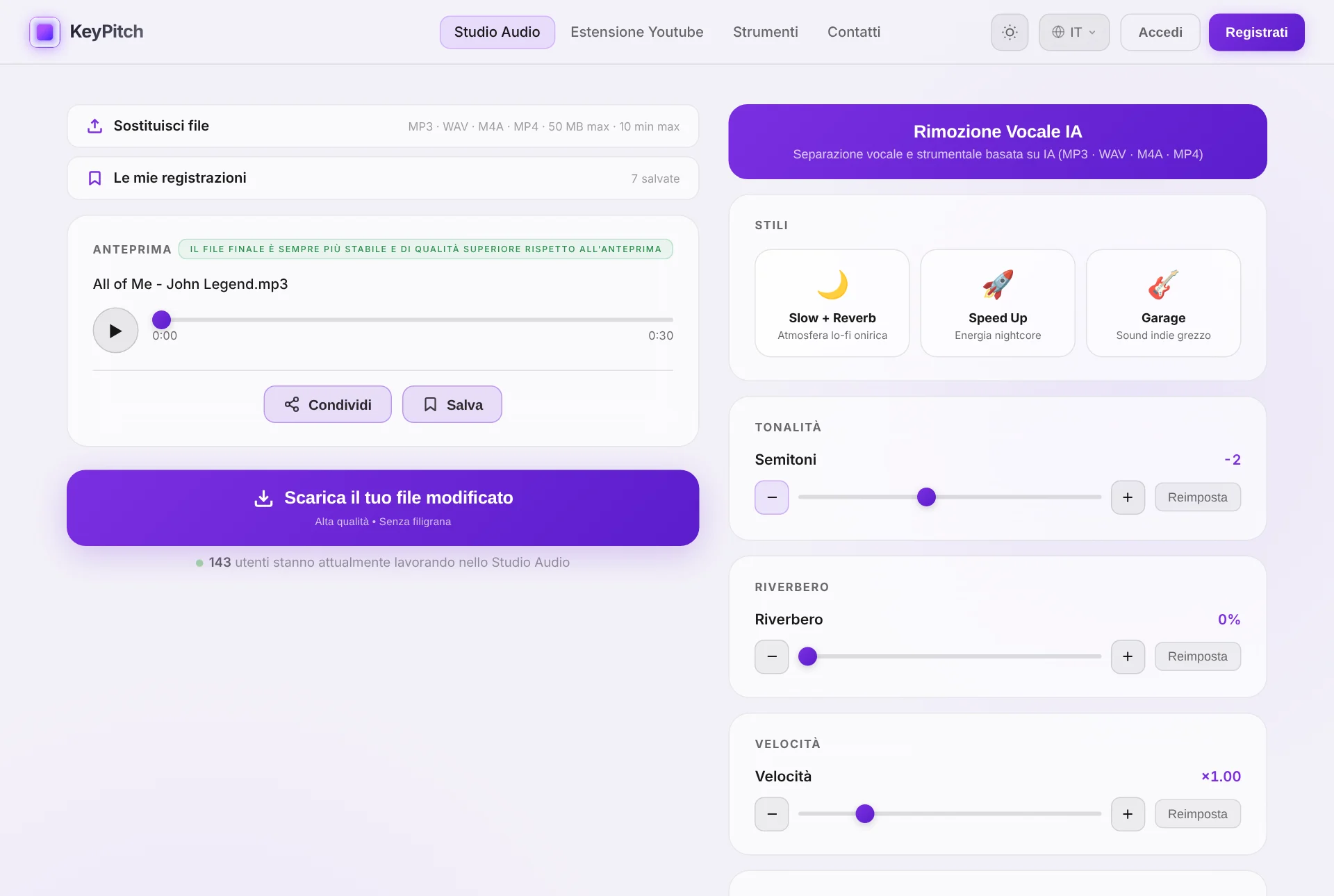
Tieni tutte le tracce di pratica di ogni allievo in un unico posto
Una traccia di pratica non si usa una volta sola: le stesse canzoni tornano settimana dopo settimana, e ogni allievo ha la sua tonalità. La libreria dell'Audio Studio, Le mie registrazioni, le conserva tutte con le loro impostazioni. Crea una cartella per allievo, dalle il suo nome e trascinaci dentro ogni canzone — alla lezione successiva il suo repertorio è a 1 clic, già nella sua tonalità. Ora conserva anche i loop A/B — solo il passaggio su cui lavora un allievo — con l'equalizzatore e tutte le impostazioni.
Senza account conservi 3 registrazioni nella scheda corrente; un account gratuito ne conserva 3 in modo permanente, su qualsiasi computer; l'abbonamento rende registrazioni e cartelle illimitate — ciò di cui un insegnante con la classe piena finisce per avere bisogno.
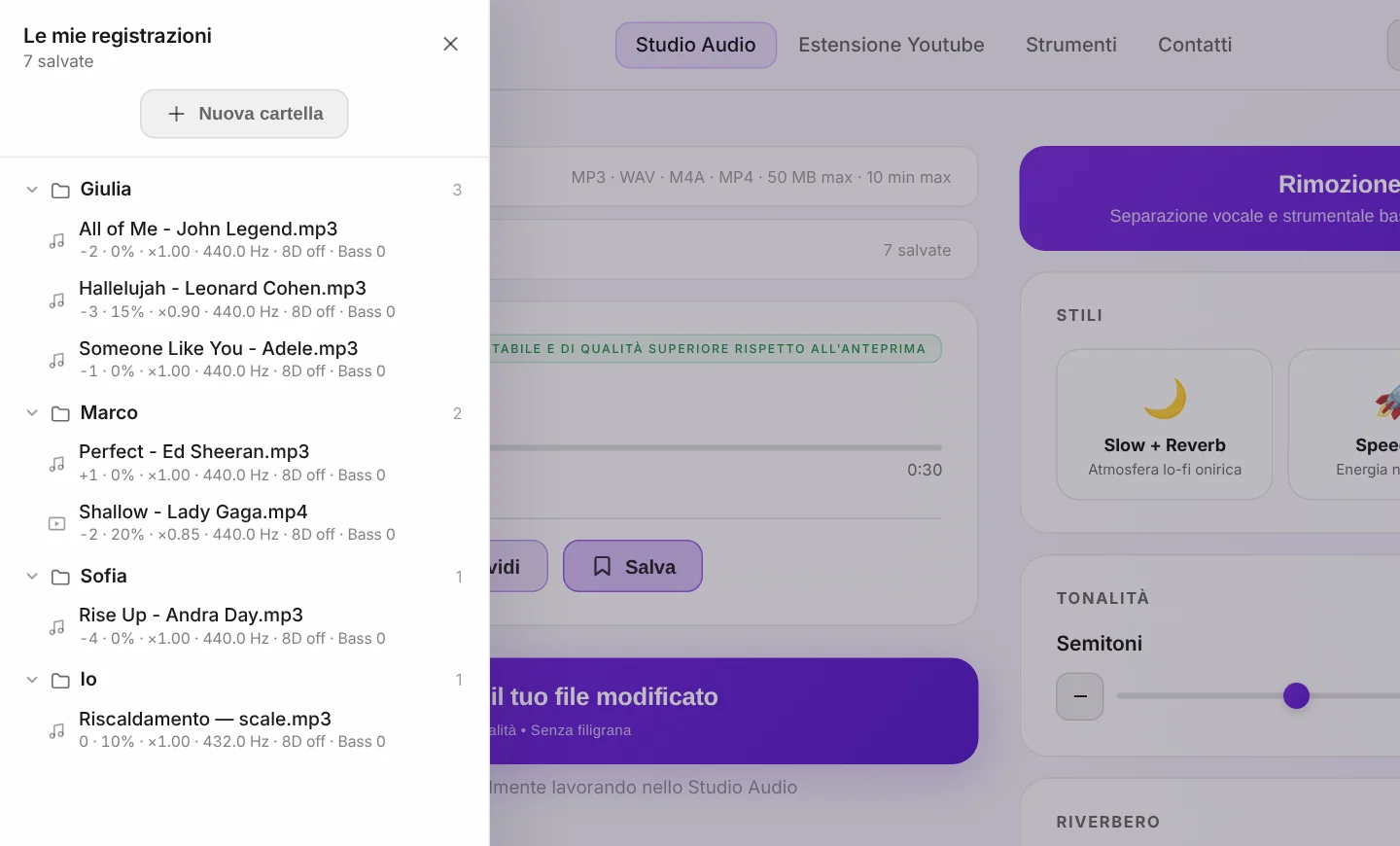
Invia le tracce di pratica con un link — nei due sensi
Inviare file audio via email funziona, ma intasa le caselle di posta e perde le impostazioni. Con Condividi, lo Studio ti dà un link che apre esattamente il tuo file con esattamente le tue impostazioni. Il tuo allievo lo apre su qualsiasi dispositivo, senza account né installazione. Creare, inviare e aprire i link è gratuito, e ogni link resta valido 7 giorni.
Anche gli allievi lo usano: ti inviano la canzone su cui vogliono lavorare prima della lezione, e tu la apri in 1 clic. La traccia di pratica torna indietro per la stessa strada — così tu e il tuo allievo lavorate sempre sullo stesso file.
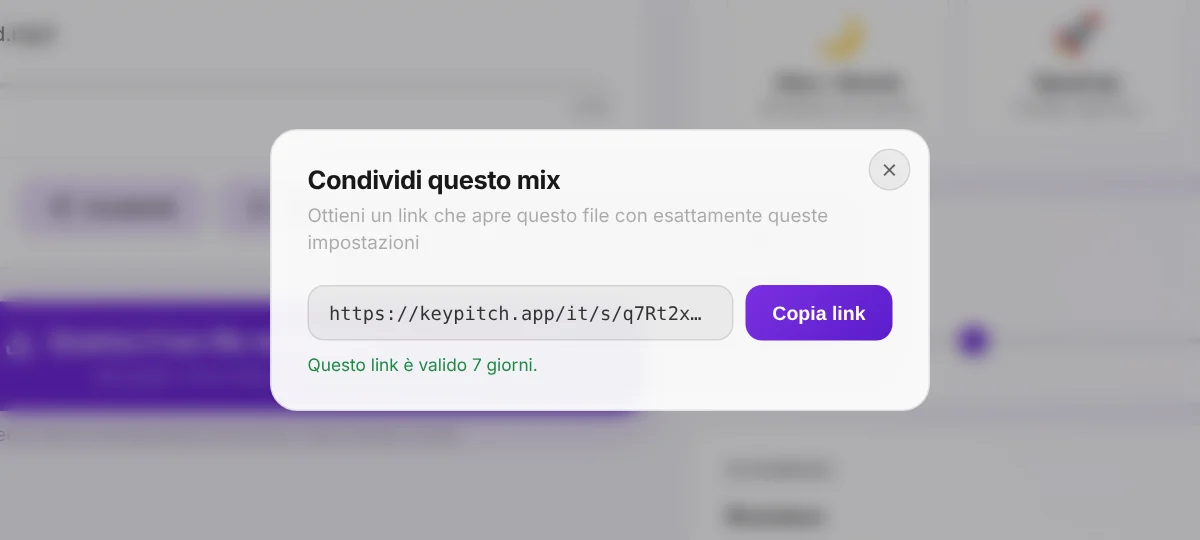
Sapere in che tonalità stai dando la canzone al tuo allievo
Lo Studio Audio ora analizza ogni canzone che carichi. Clicca il pulsante ⓘ sotto il lettore e ottieni la tonalità originale, la tonalità relativa, il codice Camelot e il tempo. Sposta il cursore dei semitoni e il pannello segue: una canzone in La minore abbassata di −2 indica Sol minore. Scrivila sullo spartito dell'allievo, dilla all'accompagnatore o mettila nel nome della cartella. È gratis; la Modalità pratica e il suo loop A/B sono gratis 5 minuti al giorno, e illimitati con un abbonamento.
Consigli per trovare la tonalità giusta più in fretta
- Parti dalla frase più difficile. Fai cantare all'allievo prima la riga più acuta (o più grave) della canzone — ti dice subito in che direzione muoverti.
- Muoviti di un semitono alla volta. La maggior parte delle voci si assesta entro ±1–3 semitoni; oltre circa ±3 la traccia può iniziare a suonare innaturale.
- Salvala invece di annotarla. Invece di segnare lo spostamento di ogni allievo (es. «Sara: −2»), salva la traccia nella sua cartella — la tonalità e ogni impostazione restano conservate per te.
- Ti serve una versione karaoke? Usa il Rimuovi Voce con IA dell'Audio Studio per togliere la voce principale, poi trasponi la base nella tonalità dell'allievo.
- Metti in loop il passaggio, non tutta la canzone. In Modalità pratica, un loop A/B attorno alla frase difficile ti risparmia minuti di ricerca sulla barra a ogni lezione.
Si possono creare tracce di pratica direttamente da YouTube?
Per il lavoro dal vivo, sì. L'estensione Chrome KeyPitch gratuita aggiunge un pannello tonalità e velocità direttamente su YouTube: durante la lezione trasponi qualsiasi karaoke o base in tempo reale — perfetto per testare le tonalità con un allievo in pochi secondi.
Ma c'è un limite invalicabile: nessuna estensione di trasposizione può scaricare l'audio trasposto, perché YouTube non consente i download. Quindi per la traccia che il tuo allievo porta a casa, la strada è il flusso qui sopra: procurati la canzone come file, trasponila nel KeyPitch Audio Studio ed esportala.
E ora l'estensione ha la sua libreria: salva ogni brano di YouTube con la tonalità trovata per ciascun allievo, in cartelle illimitate organizzate con il trascinamento e salvate in locale nel tuo browser. Alla lezione successiva, 1 clic riapre il video, già nella tonalità giusta — ideale per gli insegnanti che lavorano dal vivo su YouTube con i loro allievi. Con la nuova Modalità Studio, KeyPitch si apre in un pannello laterale proprio accanto al video, in modalità cinema; la libreria ora salva anche i loop A/B — solo il ritornello su cui lavora il tuo allievo — e Il mio spazio mostra le sue serie di pratica.
Perché sempre più insegnanti e allievi scelgono KeyPitch
Perché è un ecosistema completo che resta semplice: l'estensione gratuita per il lavoro dal vivo su YouTube, l'Audio Studio per trasporre, rallentare e separare la voce, i link di Condividi per scambiarsi tracce con le loro impostazioni, e le librerie che tengono in ordine le canzoni di ogni allievo. Insegnanti, coach e allievi lavorano tutti nello stesso ambiente — 19700+ musicisti lo fanno già.
Ogni allievo merita di esercitarsi nella propria tonalità. Carica la prossima canzone che un allievo ti invia — e la sua traccia di pratica è pronta prima della fine della lezione.
Domande frequenti
Chiedi all'allievo di inviarti la canzone prima della lezione, come file o come link di Condividi KeyPitch. Aprila nel KeyPitch Audio Studio, sposta il cursore dei semitoni finché la canzone non si adatta all'estensione vocale dell'allievo e provate i passaggi su cui state lavorando. Poi salva la traccia nella cartella dell'allievo e rimandagliela come link di Condividi o come file scaricato per lo studio a casa.
Fai cantare all'allievo la frase più acuta della canzone mentre abbassi o alzi la tonalità un semitono alla volta. Quando la nota più alta esce comoda e i gravi restano appoggiati, hai trovato la tonalità. La maggior parte degli allievi ha bisogno di uno spostamento di 1–3 semitoni.
In tempo reale sì — l'estensione Chrome KeyPitch gratuita cambia la tonalità di qualsiasi video YouTube dal vivo durante la lezione. Ma nessuna estensione di trasposizione può scaricare il risultato, perché YouTube non consente i download. Per dare al tuo allievo un file da conservare, carica la canzone nel KeyPitch Audio Studio ed esportala da lì.
Caricare una canzone, cambiare la tonalità e ascoltare l'anteprima è gratuito nel KeyPitch Audio Studio. Scaricare il file modificato è a pagamento: puoi acquistare un'esportazione singola, un pacchetto scontato di crediti di esportazione o un abbonamento con download illimitati.
L'abbonamento con download illimitati. Un coach in genere prepara una traccia nuova per ogni allievo ogni settimana, quindi le esportazioni illimitate — più la rimozione voce con IA e la Modalità pratica illimitate — convengono in fretta rispetto a pagare per download. Esportazioni singole e pacchetti di crediti vanno meglio per un uso occasionale.
Sì. Per gli insegnanti con molti allievi, KeyPitch offre licenze che coprono l'insegnante e tutti i suoi allievi a un prezzo ridotto per posto, così ognuno ha il proprio accesso all'Audio Studio. Mettiti in contatto tramite la pagina dei contatti per i prezzi delle licenze.
MP3, WAV, M4A o MP4 — vanno bene sia un file audio sia un video, fino a 50 MB e 10 minuti. KeyPitch elabora l'audio (e mantiene l'immagine sincronizzata per gli MP4) ed esporta MP3 o WAV — oppure MP4 se l'allievo ha inviato un video.
No. KeyPitch sposta il pitch in modo indipendente dal tempo, quindi la traccia di pratica mantiene la velocità originale — si muove solo la tonalità. Puoi anche rallentare la traccia separatamente per lavorare sui passaggi difficili.
Sì. Il KeyPitch Audio Studio include un Rimuovi Voce con IA che separa la canzone in voce e base strumentale. Togli la voce principale, trasponi la base nella tonalità dell'allievo e scarica una traccia karaoke pulita.
Alla maggior parte dei cantanti bastano 1–3 semitoni in su o in giù. KeyPitch va da −12 a +12, ma oltre circa ±3 semitoni l'audio può iniziare a suonare innaturale: usa lo spostamento più piccolo che rende comoda la canzone.
In due modi. Scarica il file e invialo per e-mail, oppure clicca su Condividi nello Studio Audio per ottenere un link che apre la base con le tue impostazioni esatte. Il tuo allievo deve solo aprire il link — senza account, senza installare nulla. Creare e ricevere questi link è gratuito e restano validi 7 giorni.
Sì. Salva una base con le sue impostazioni nella tua libreria e riaprila quando vuoi, ordinata in cartelle con il trascinamento — una cartella per allievo, rinominata con il suo nome. Tre registrazioni sono gratuite con un account, e un abbonamento rende la libreria illimitata. Puoi salvare anche un loop A/B: solo il passaggio su cui lavora un allievo, che si riapre in Modalità pratica.
Sì. L'estensione gratuita KeyPitch ha la sua libreria: salva ogni brano di YouTube con tonalità, pitch, tempo ed effetti, e ordinalo in cartelle illimitate con il trascinamento — una per allievo. È salvata in locale nel tuo browser, e 1 clic riapre il brano nella tonalità giusta alla lezione successiva. Può anche salvare un loop A/B, come il ritornello che il tuo allievo sta imparando, e riaprire esattamente quel passaggio.
Sì. L'allievo carica la canzone nel KeyPitch Audio Studio, la regola come la sta cantando, clicca su Condividi e ti invia il link. Tu apri il suo file in 1 clic con le sue impostazioni, regoli la tonalità a lezione e gli rimandi la traccia di pratica finita per la stessa strada.
Sì. Nello Studio Audio, su computer, la Modalità pratica aggiunge un loop A/B: segna l'inizio e la fine del passaggio, poi scegli Infinito per ripeterlo, o Una volta per sentirlo una volta e ricantarlo dal punto A. Con un file audio, il testo si può incollare accanto alle regolazioni, in una dimensione che l'allievo legge senza fatica. Il loop si può salvare in Le mie registrazioni per la lezione successiva. La Modalità pratica è gratis 5 minuti al giorno, illimitata con un abbonamento.
Clicca il pulsante ⓘ sotto il lettore nello Studio Audio. Il pannello di analisi mostra la tonalità della canzone, la tonalità relativa, il codice Camelot e il tempo — e quando sposti il cursore dei semitoni, mostra la nuova tonalità. Una canzone in La minore trasposta di −2 indica Sol minore. È gratis.